6. Pushing to Github and Opening a Pull Request
Pushing the change to Github
Now that all that is done, you are going to send the changes back to your copy of the source code on Github:
$ git push origin the-name-of-the-branch
Opening a Pull Request
You now have 2 copies of the modified source code of the listwiz project. One locally on your computer, the other under your Github account. So first you will push your locally modified source code to your Github account. To do this run the command:
$ git push origin the-name-of-the-branch
Now we want to merge the changes from your Github account to the main source
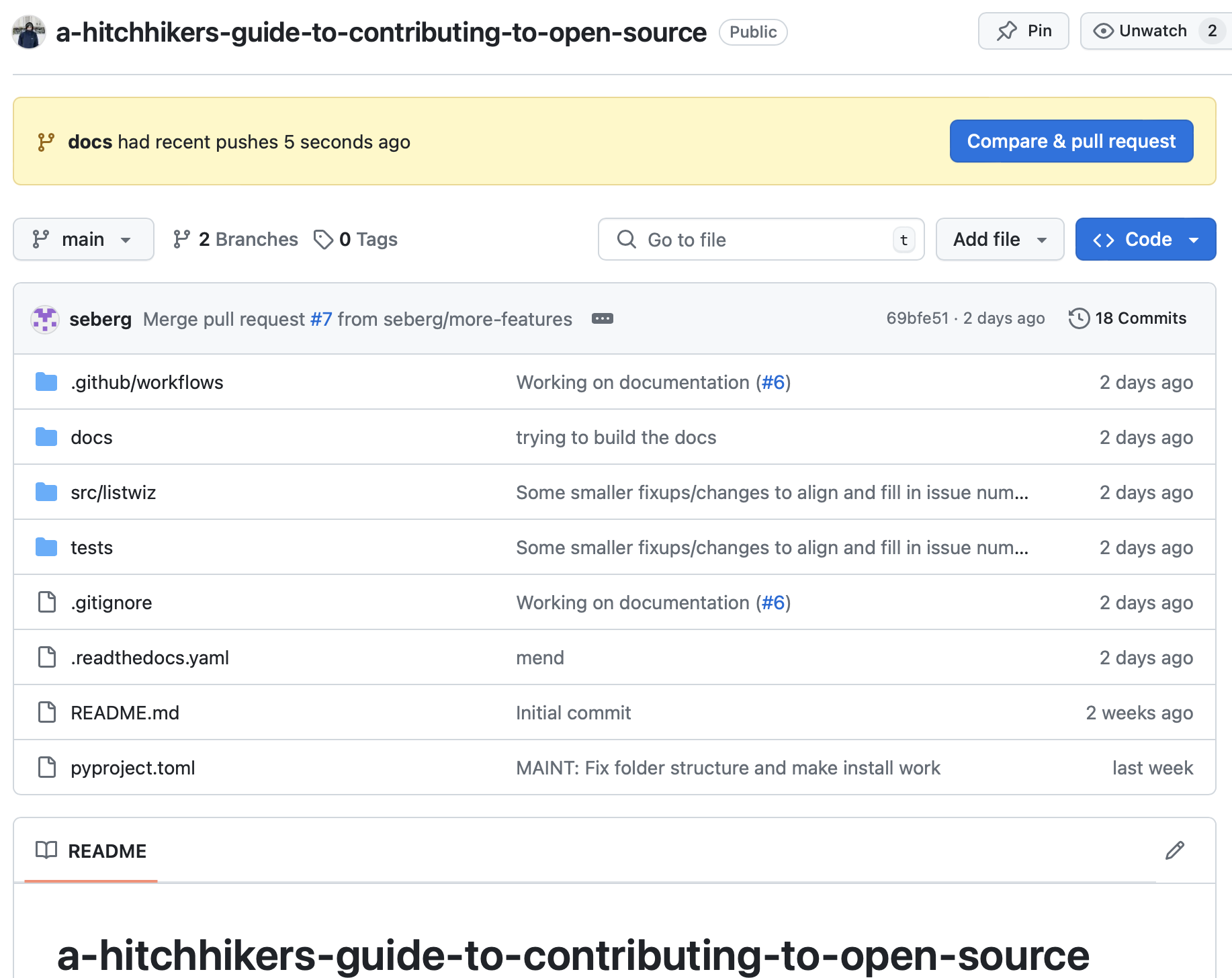
code of listwiz. To do this, open a Pull Request. To do this, navigate to the
repository on your Github account. You should see a Compare and Pull
Request button:
Making further modifications
Once a Pull Request is opened, a number of automated checks will start. This will check the various software tests but also build a viewable version of the documentation.
You can click on the corresponding details button to see any of these.
No that your modification will also be reviewed. To make any required changes, modify the files in your computer as you did before.
Then stage and commit the files:
$ git add <name of the file tou want to commit>
$ git commit
This will open a text editor where you can write your commit title and message (similarly to before).
Once this is done, push the code to Github which will automatically update the pull request:
$ git push origin add-name-to-contributors-list
This final process of making further modifications might repeat itself and eventually the Pull Request will be merged and your changes included in the main version of the source code.